Getting started
How to track Stripe revenue in your Mac menu bar
Track 19 Stripe metrics from your Mac menu bar with PayBar, including daily sales, net volume, MRR, subscribers, disputes, and available balance.
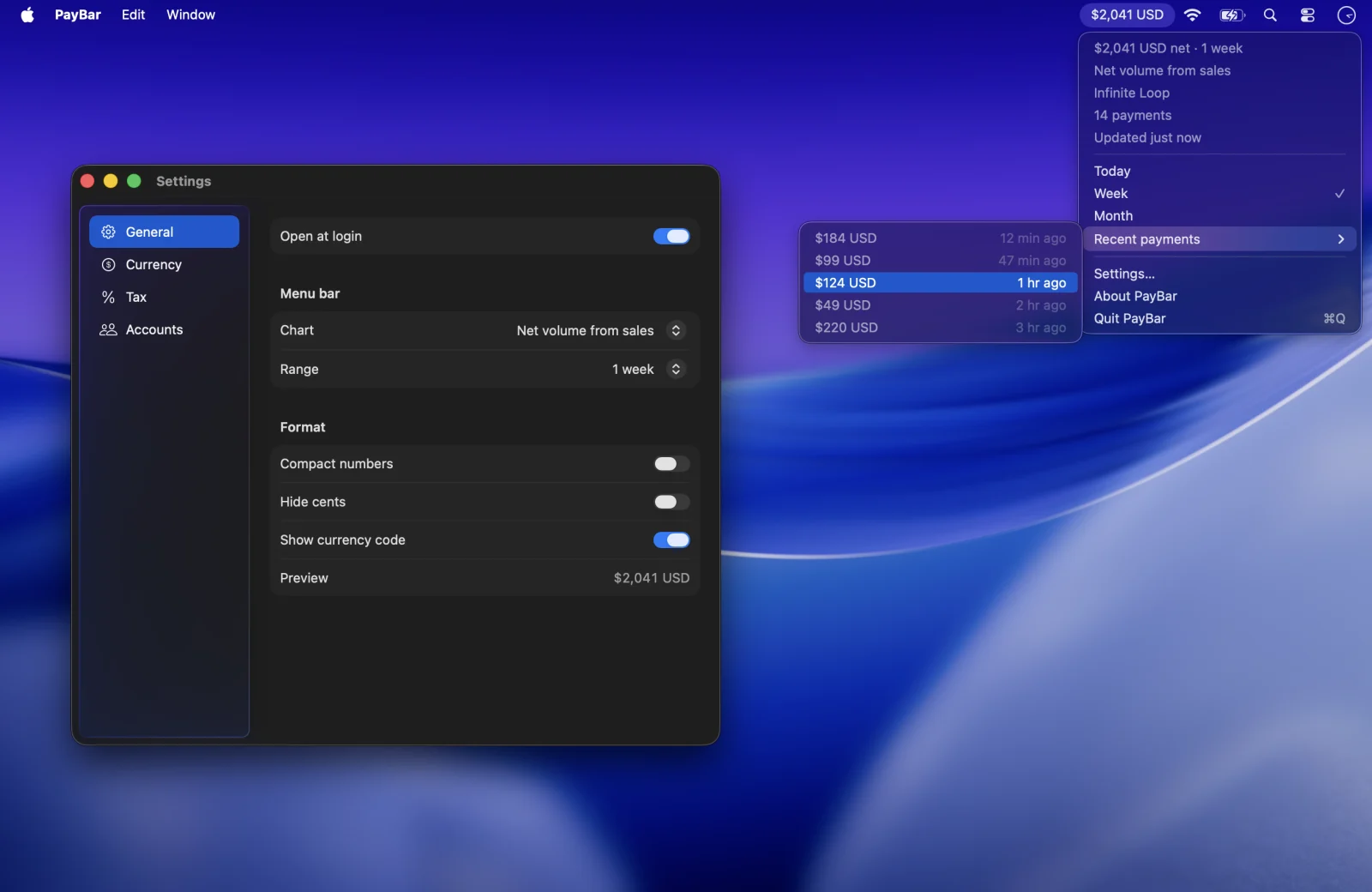
PayBar is a native Mac app that puts a Stripe metric of your choice in the menu bar while you work. Instead of keeping another dashboard tab open, you can pin your daily sales, monthly recurring revenue, available balance, or one of 16 other metrics. It retrieves Stripe data in the background and lets you change what you monitor without modifying your account. You can still open the full Stripe Dashboard for individual transactions and account management.
Connect your Stripe account
Open PayBar, click its icon in the Mac menu bar, and choose Settings → Accounts. Give the account a name and add a restricted, read-only Stripe API key. The Stripe key setup guide walks through the permissions for sales, subscriptions, disputes and other metrics. Start with access to Balance and Balance transactions, then grant only the additional read permissions required. Never paste your Stripe key into a website or send it to anyone.
Choose the number to show
- Open Settings → General from the PayBar menu.
- In Chart, pick Gross volume, Net volume from sales, or a different Stripe metric.
- Set Range to Today for a daily total. You can switch between Today, Week, and Month from the menu or choose a longer range in Settings.
For example, the product screenshot above shows the weekly net volume of a sample Stripe account and a submenu of recent payments. The amount remains at the top of the desktop when you switch to another Mac app.
All 19 Stripe metrics you can track on your Mac
Choose one metric to display in the menu bar. The Chart picker groups PayBar’s metrics into five categories so that you can find the right figure quickly.
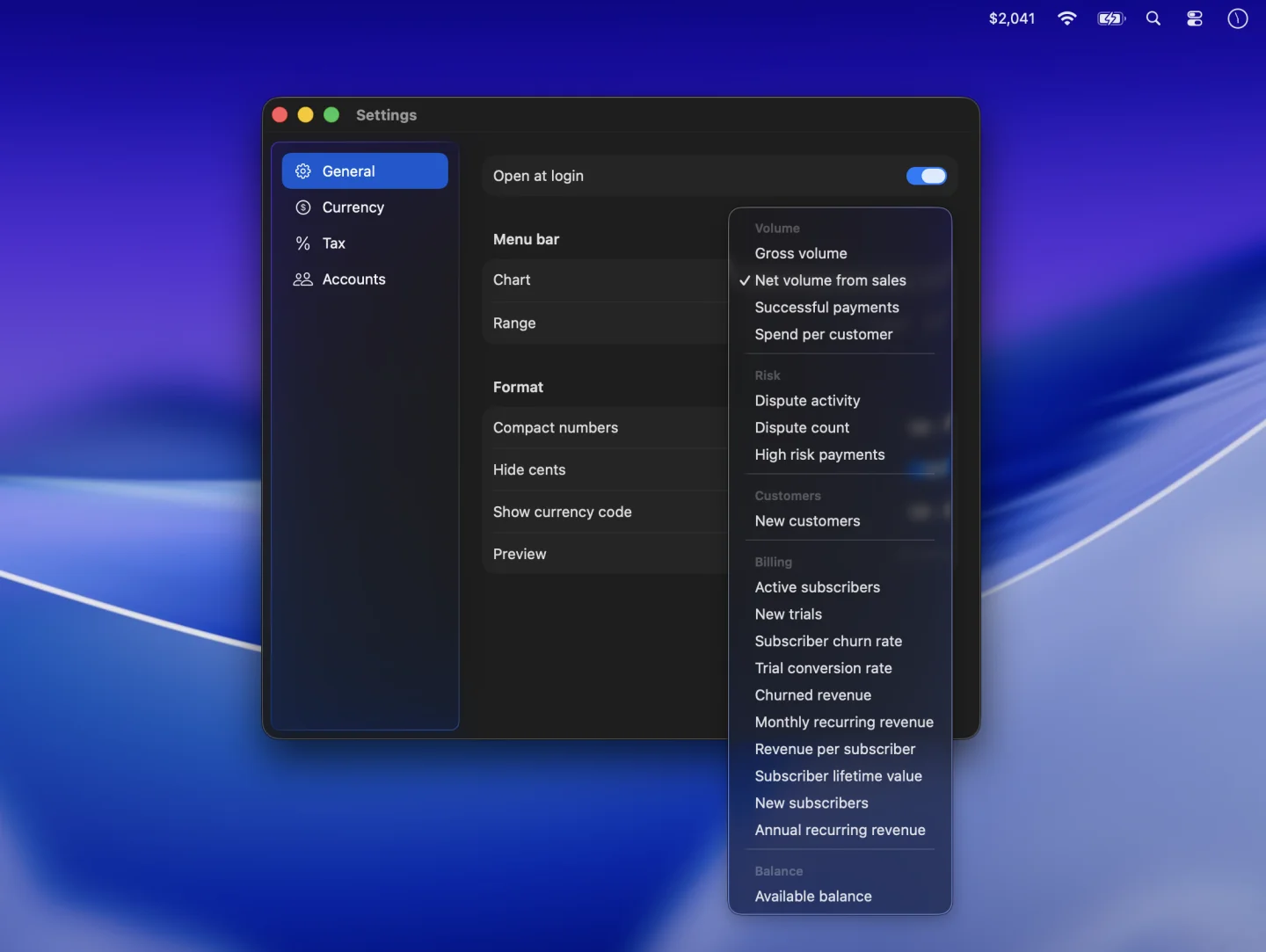
Volume (4 metrics)
- Gross volume: the sum of incoming sales balance transactions before fees or refunds.
- Net volume from sales: sales minus their associated fees and the net effect of refunds, disputes and dispute reversals.
- Successful payments: a count of incoming sales balance transactions.
- Spend per customer: net sales divided by the number of distinct identified paying customers in the selected period.
Risk (3 metrics)
- Dispute activity: the amount disputed in the reporting currency.
- Dispute count: the number of disputes created during the period.
- High risk payments: charges with an elevated or highest Stripe Radar risk level, where that information is available.
See the Stripe risk monitoring guide for permissions and how to interpret these figures.
Customers (1 metric)
- New customers: the number of Stripe customer records created during the selected period.
Billing (10 metrics)
- Active subscribers: subscription records in active or trialing status.
- New trials: trial subscriptions counted in the selected period.
- Subscriber churn rate: a snapshot estimate using canceled subscription records relative to active and canceled records.
- Trial conversion rate: the share of subscription records with a trial start that are currently active.
- Churned revenue: the monthly equivalent of recurring prices on subscriptions canceled during the period.
- Monthly recurring revenue (MRR): the estimated monthly equivalent of fixed recurring subscription prices.
- Revenue per subscriber: period net sales divided by the current count of active or trialing subscription records.
- Subscriber lifetime value: an estimate based on recurring revenue per subscriber and the app’s snapshot churn rate.
- New subscribers: subscription records created during the period, not necessarily distinct people or paid conversions.
- Annual recurring revenue (ARR): 12 times estimated MRR.
These are PayBar calculations, not exported Stripe Billing reports. Read how to track MRR and ARR and how subscriber churn works in PayBar for useful limitations and examples.
Balance (1 metric)
- Available balance: currently available funds in the account’s reporting currency; not pending funds or the expected next payout.
Pick the right date range
For metrics based on activity, choose Today, 1 week, 4 weeks, 1 month, 1 year, Month to date, Quarter to date, Year to date or All time in General. Week is the latest seven calendar days including today; Month is a rolling calendar-month window rather than the first day of this month. Choose Month to date for the latter. PayBar uses the Stripe dashboard time zone when available, otherwise your Mac’s local time zone.
Available balance, active subscribers, MRR, ARR, trial conversion rate, subscriber churn rate and lifetime value are current snapshots rather than historical series. Changing the date range does not turn these metrics into historical reports. Longer activity ranges can take longer to refresh if there are many transactions.
Compare gross volume and net sales
Gross volume adds up sales before fees and refunds. Net volume from sales uses the net amounts on Stripe’s sales balance transactions, including refunds and dispute activity.
Suppose you take a $100 payment, Stripe charges $3 in fees, and you refund $20 in the same date range. If the refund leaves the fee in place, gross volume is $100 and net volume from sales is $77. This example assumes one currency and the tax estimate is off. See Stripe’s balance transaction guide for how payments, fees, and refunds appear in the Stripe balance.
Read the full guide to Stripe gross vs net volume. If you want to see the funds Stripe currently has available for payout, choose Available balance.
Track more than one Stripe business
Add a restricted key for each of your businesses, then select an account under Accounts. Enable Total all accounts to combine supported metrics; if the accounts report in different currencies, pick a shared display currency. Combined ratios and averages follow their respective calculation rather than adding percentages together. See the multiple accounts guide for details.
Make the amount easy to scan
Use Compact numbers in General to shorten large amounts. Hide cents shows whole units, and Show currency code identifies currencies such as AUD and USD. The preview in General shows the format as you change it.
If you want an estimate of revenue after a chosen set-aside percentage, see how to display after-tax Stripe revenue. This changes presentation and does not deduct any actual funds.
Click the amount to see the current range, account, payment count, and when PayBar last refreshed. You can also open individual Stripe payments from the menu.
Frequently asked questions
Does PayBar refresh automatically?
Yes. While the app is awake and connected to the internet, it checks for updated metrics on a 30-second timer. A refresh already underway is allowed to finish; heavily trafficked accounts and longer date ranges can take longer. Check the last-update indicator before relying on a recent figure.
Can I accept payments, issue refunds or manage disputes from PayBar?
No. PayBar monitors the data allowed by the restricted Stripe key. Use Stripe's official Dashboard for actions on payments, customers and other account resources.
Where are my Stripe keys stored?
PayBar saves them in the Mac Keychain and uses them to fetch metric data directly from Stripe. Your key does not need to be shared with the PayBar website. Read the privacy information for details about the app's other network services, including licensing and currency conversion.
What if the number differs from my Stripe Dashboard?
First match the account, date range, currency and selected metric. See the troubleshooting guide on why Stripe revenue figures can differ.
PayBar on your Mac
A 24-hour free trial will be available when online checkout opens.
Launch details