Accounts
How to track multiple Stripe accounts in PayBar
Add a Stripe account for each business, switch between them, and see combined totals for supported metrics.
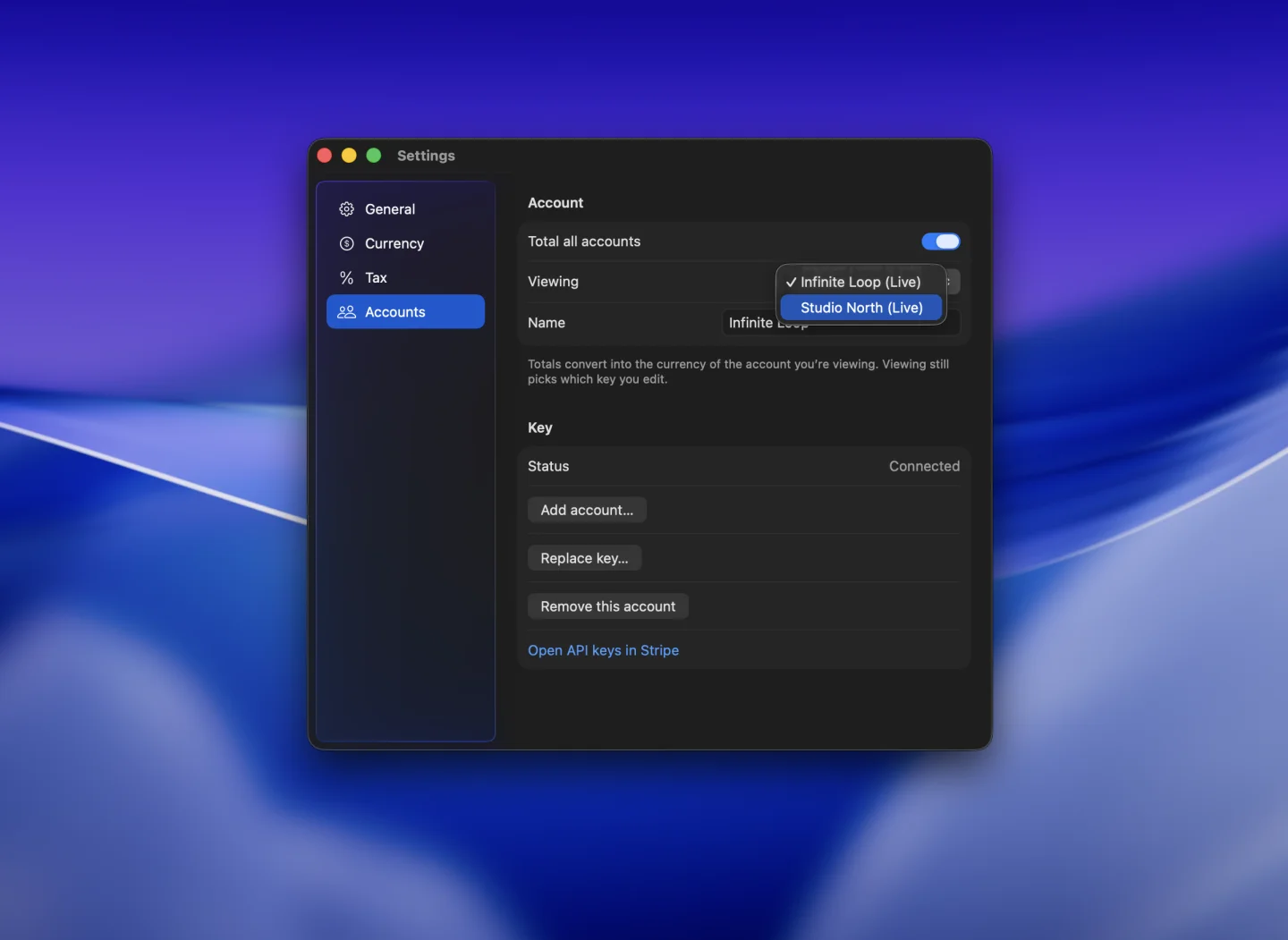
Add a key for each account
- Switch to the account you want to add in Stripe and create a restricted Stripe key for that account.
- In PayBar, open Settings → Accounts and click Add account….
- Give the account a name that tells you which business it represents. Paste its restricted key and click Add.
Repeat for the other accounts. PayBar labels live and test connections separately in Accounts.
View one business at a time
Keep Total all accounts off. Use the Viewing picker in Accounts to switch between businesses. The chart and date range you selected under General still apply to the account you’re viewing.
Show a combined total
Turn on Total all accounts to combine supported metrics, such as net sales volume. If your accounts settle in different currencies, you can choose one display currency for the total. With display currency conversion off, PayBar uses the currency of the account selected in Accounts as the basis for combined monetary amounts.
If an account fails to load, check its own key, permissions, and Stripe environment. Reopen Accounts and select the account under Viewing before choosing Replace key… or Remove this account….
PayBar on your Mac
A 24-hour free trial will be available when online checkout opens.
Launch details