Payment risk
How to track Stripe disputes and high-risk payments on your Mac
See Stripe dispute counts, disputed amounts, or high-risk payments in the Mac menu bar. Learn how to read each number in PayBar.
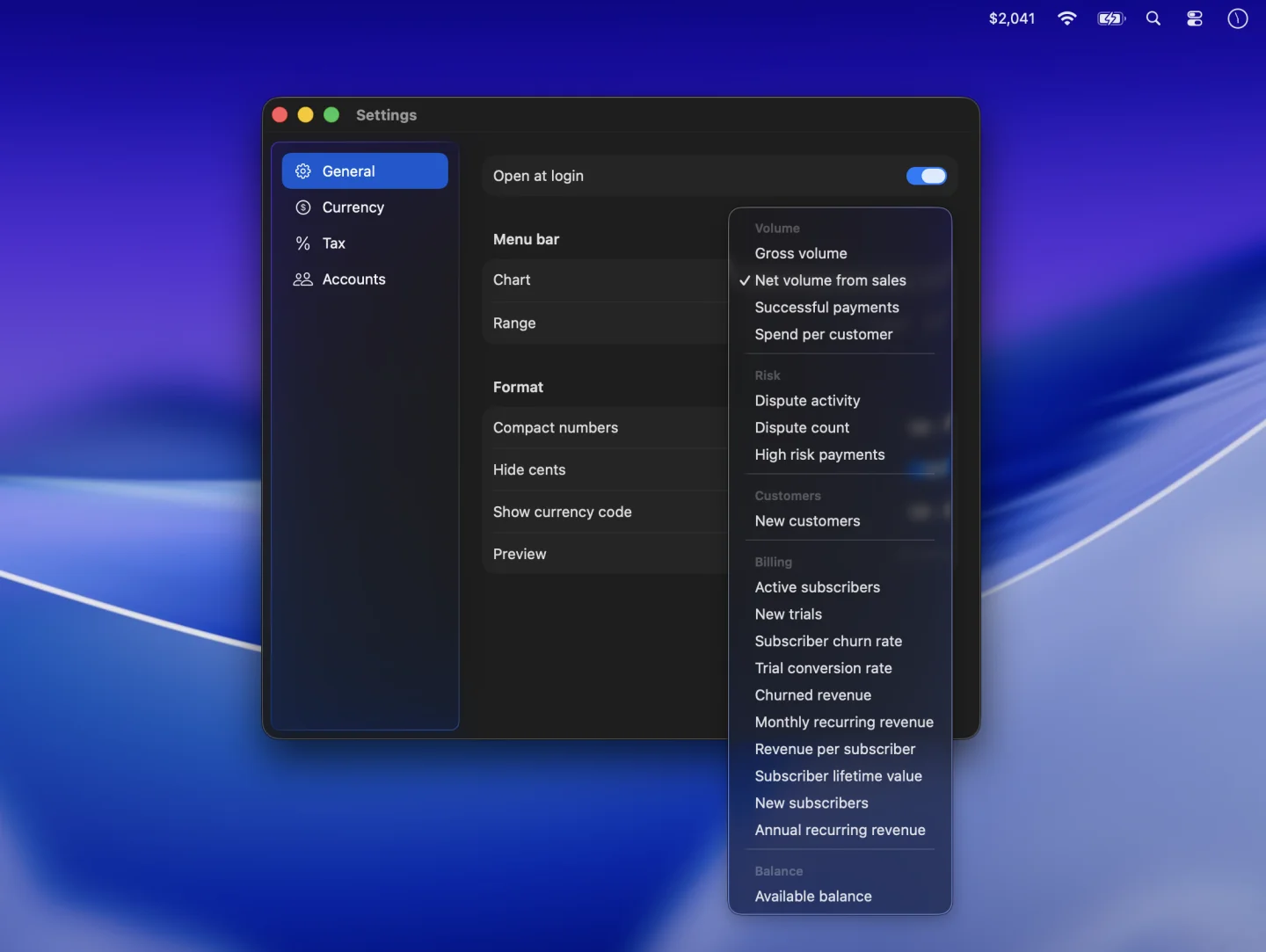
Choose a risk metric
- In the Stripe Dashboard, give your restricted API key Read access to Payment Disputes for dispute metrics or Charges and Refunds for high-risk payments. Keep read access to Balance for PayBar’s balance check.
- Click PayBar in your Mac menu bar and open Settings → General.
- Open Chart and choose a metric under Risk. Set Range to the period you want to monitor.
Read the dispute count and amount
Dispute count counts disputes created during the selected period. Dispute activity adds the disputed amounts that match the account’s reporting currency. If the account reports in USD and the period has two disputes for $25 USD and $40 USD, PayBar shows a count of 2 and an activity total of $65 USD before display adjustments.
A cardholder can open a dispute after the original payment date. In the Stripe Dashboard, check each dispute’s status, fees, and response deadline. See Stripe’s guide to payment disputes.
Understand the high-risk payment count
High risk payments counts charges created in the selected period that Stripe Radar rated elevated or highest. The count can include blocked attempts when Stripe returns a charge with either rating. Use Stripe’s payment details to see the outcome for an individual charge. See Stripe’s guide to Radar risk levels.
If a number looks incomplete, check the selected Stripe account, live or test mode, date range, and the key’s read permissions.
PayBar on your Mac
A 24-hour free trial will be available when online checkout opens.
Launch details