Payments
Why your Stripe revenue figures can differ in PayBar
Troubleshoot differences in Stripe sales and balances between PayBar and Stripe Dashboard by checking the metric, period, currency, fees and account.
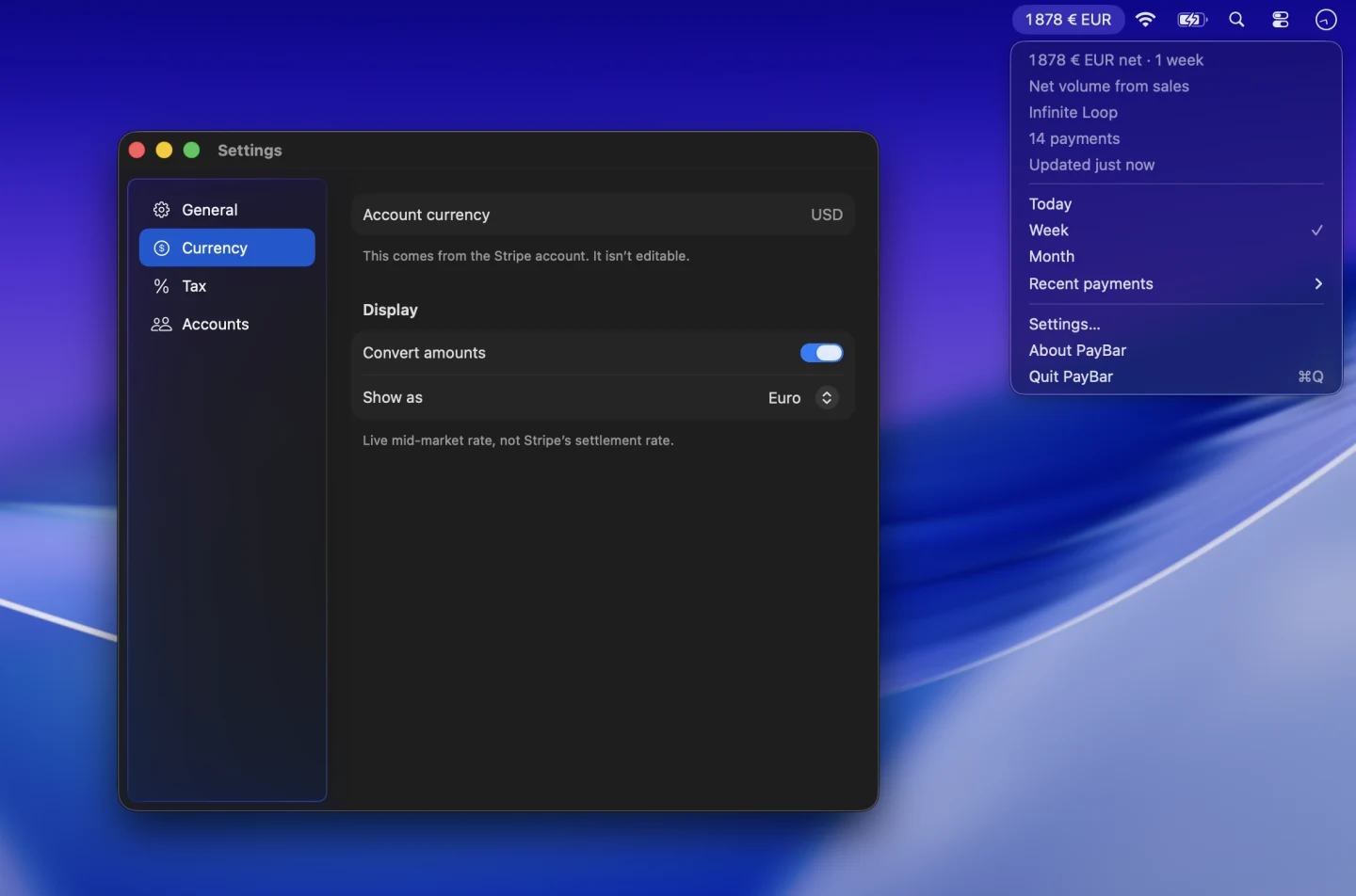
If the number in your Stripe Dashboard does not match PayBar, start by checking that you are comparing exactly the same data. This guide focuses on transaction-based sales and balance figures. For subscriptions and recurring-revenue differences, use our separate Stripe MRR reconciliation guide.
1. Compare the same Stripe metric
Gross volume before deductions, net volume from sales after associated fees and refunds, and currently available balance are not interchangeable. Open PayBar’s General settings to check the selected chart. Also remember that monthly recurring revenue is a subscription estimate, not the money collected so far this month.
Compare PayBar’s gross and net volume calculations with the underlying Stripe balance transactions, rather than comparing different reports based on the chart title alone.
2. Match the date range and time zone
PayBar’s Week covers today and the preceding six calendar days; 1 month is a rolling calendar-month range, while Month to date starts on the first day of the current month. Select the corresponding range in Stripe. PayBar uses the account’s dashboard time zone when available. A difference near midnight may reflect an otherwise unnoticed time-zone boundary.
Balance and several subscriber metrics are current snapshots. Their value does not change when you select a different historical range.
3. Check the reporting currency and display conversion
Turn on Show currency code under General, then turn off Convert amounts in Currency for a direct comparison. PayBar calculates sales from transactions in the account reporting currency; an account with transactions settling into more than one currency can therefore have totals that differ from reports aggregating those currencies. The optional display conversion uses a separate exchange-rate quote and may not match Stripe's settlement rate.
See currency conversion in PayBar and Stripe’s currency documentation.
4. Disable presentation adjustments
Disable Set aside tax in the Tax tab and turn off Compact numbers and Hide cents in General. The estimated after-tax number intentionally differs from the raw total. Compact numbers and hiding cents can also conceal a small difference due to rounding.
5. Match your Stripe account and environment
If you added multiple accounts, turn off Total all accounts and compare one at a time. Confirm you have selected the same business and live or test environment as the Stripe Dashboard. Check your restricted key's read permissions for the selected metric, then check that the menu’s last-update indicator reflects a recent refresh.
6. Review refunds, disputes and settlement
Net sales reflect the net effect of relevant sales balance transactions. Refunds or disputes can happen on a different date from the original payment, and payouts can settle on another date entirely. Separate fees, balances in other currencies and transfers are additional reasons that the full Stripe balance report can differ from sales volume.
Open Stripe’s balance transaction documentation to trace these movements. For a mismatch that remains after these checks, contact PayBar support with the selected metric, date range, time zone, displayed amount and expected Stripe amount. Do not send API keys, customer details or other sensitive Stripe information.
PayBar on your Mac
A 24-hour free trial will be available when online checkout opens.
Launch details