Recurring revenue
How to track Stripe MRR and ARR on your Mac
Put monthly or annual recurring revenue in your Mac menu bar and understand how it differs from your Stripe sales total.
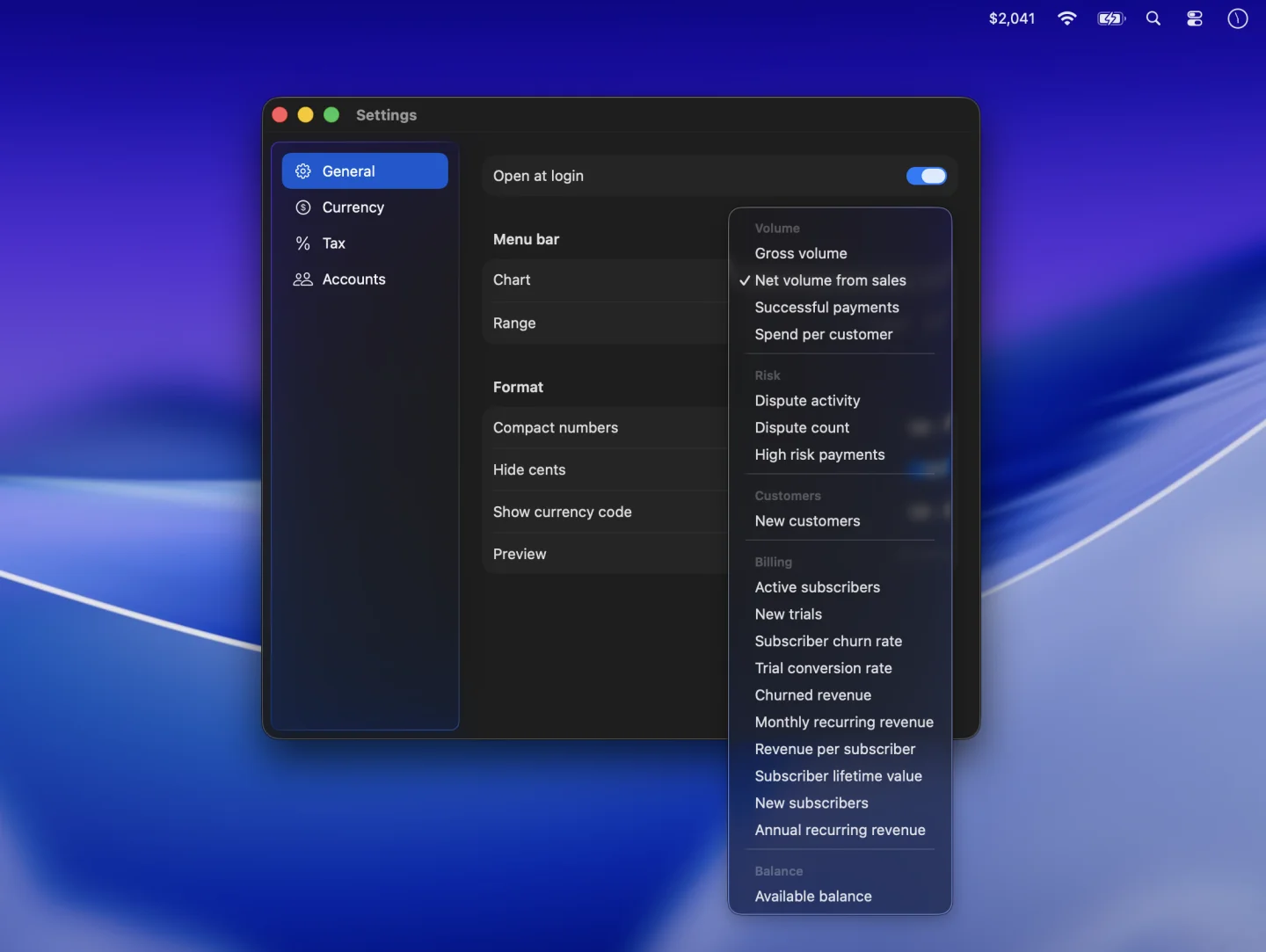
Show monthly recurring revenue
- Connect a Stripe account that uses subscriptions. Give your restricted Stripe key read access to subscriptions.
- Open Settings → General in PayBar and open the Chart picker.
- Under Billing, pick Monthly recurring revenue. To see the annualized figure, select Annual recurring revenue.
Read MRR, ARR, and sales together
MRR puts recurring subscription prices on a monthly basis. ARR multiplies that monthly figure by 12. A plan at $120 per year contributes $10 per month before any other adjustments. MRR and ARR describe your subscription base, while sales volume describes Stripe payment activity during a chosen date range.
PayBar calculates its estimate from the Stripe subscription data available to your key. If it differs from your dashboard, compare how PayBar and Stripe Billing calculate MRR.
Add context with subscriber metrics
Switch the Chart picker to Active subscribers, New subscribers, or Subscriber churn rate to see what’s changing in your subscription base. If those figures are unavailable, confirm you’re viewing the right Stripe account and environment and that the key can read subscriptions.
Read our guide to subscription churn, trial conversions and lifetime value to interpret those estimates.
PayBar on your Mac
A 24-hour free trial will be available when online checkout opens.
Launch details